

How to apply restrictions and availability plans in Roomdoo
This video walks you through rate changes, restrictions, and availability:
To update availability restrictions in Roomdoo, open the option at the bottom-left of the calendar by clicking Update prices and restrictions.
A panel opens with the property’s room categories for each day in the calendar.
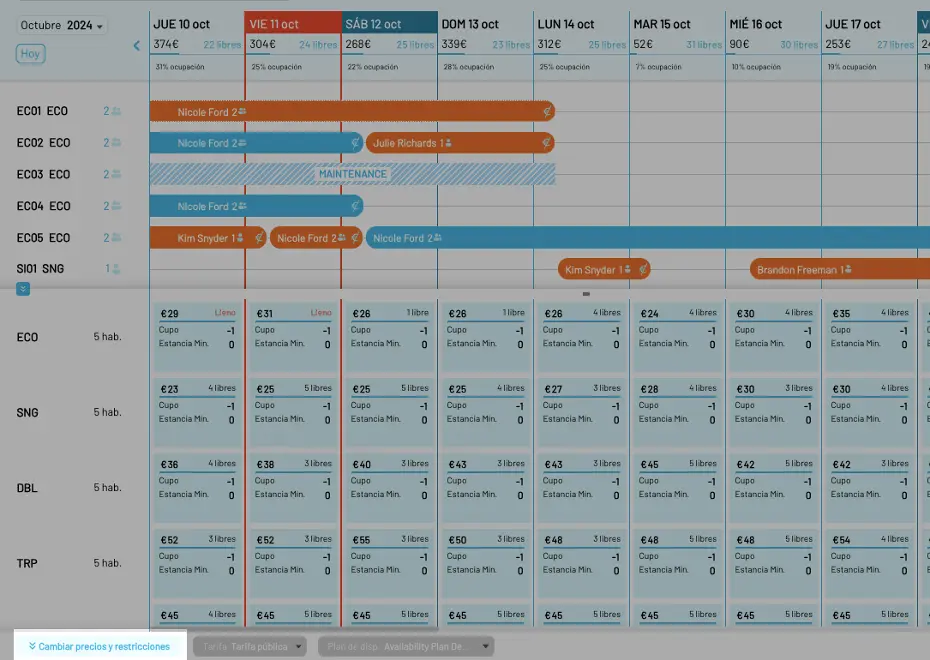
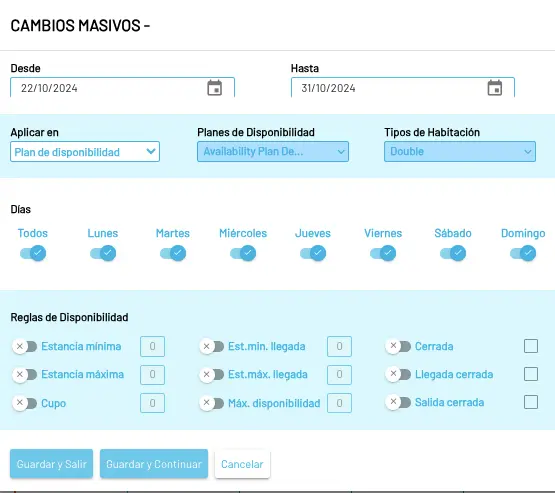
- Allotment: how many rooms the property has available to sell through online channels. The allotment can be limited and varies with demand and season.
- Setting the allotment to
-1means every available room can be sold through online channels. - Setting it to
0closes online sales. - Setting it to any other integer caps the number of rooms of that type available for online sale on that day.
- Setting the allotment to
- Max availability: this works together with allotment. When allotment is set to
-1(all rooms available), max availability lets you cap how many show up at once on channels, so OTAs can display a “last rooms available” message. For example, if the hotel has 8 rooms and allotment is-1, you can set Max availability=2to push two at a time to Booking. Setting Max availability=-1tells Roomdoo not to limit and to publish everything at the same time. - Minimum stay: the minimum number of nights a guest must book to stay. Common during high season, long weekends, special events, or promotions.
- Maximum stay: the maximum number of nights a guest can stay in a single reservation. Useful to avoid long stays and keep room turnover up, or for operational or legal reasons. Set
-1for unlimited. - Closed: closes online sales for the room type on that day. Regardless of the other parameters, ticking this immediately closes online sales. Useful if you take a phone reservation for every room on a given day, for example.
- Min stay on arrival: minimum stay applied only to bookings checking in on that specific day.
- Closed on arrival: stops new reservations with a check-in date on the selected day.
- Closed on departure: stops new reservations with a check-out date on the selected day.
Mass updates
Setting prices day-by-day for each room type can be tedious, so there’s a faster way.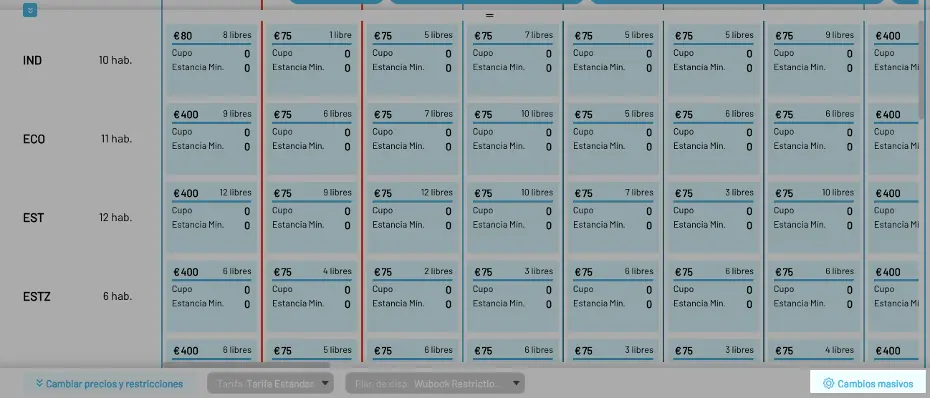
If you only need to change prices and restrictions for one room or a specific day without doing a mass update, see the guide on how to set and update rates in Roomdoo.