

How it works
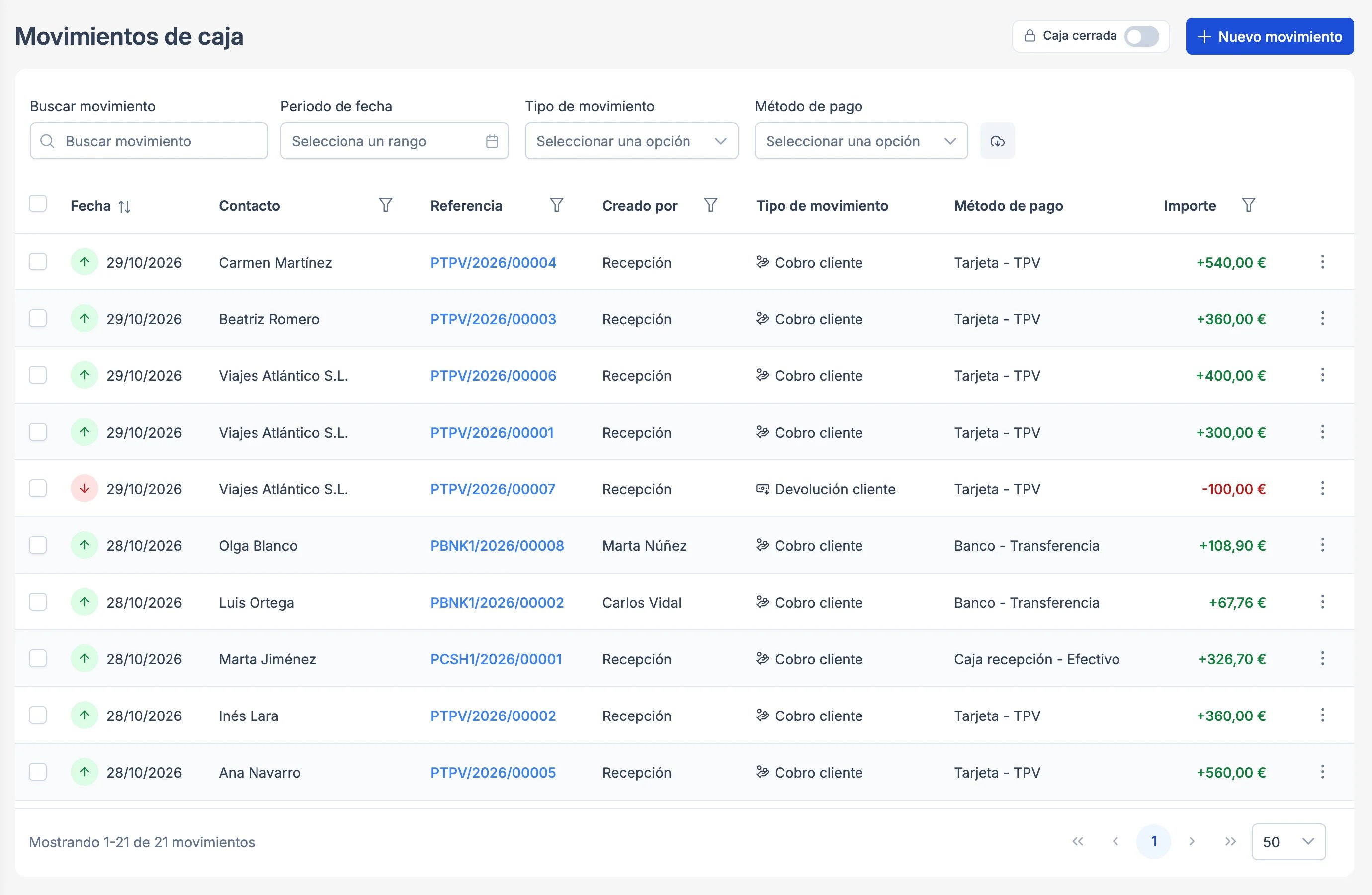
Cash movements (side menu, wallet icon) brings together all the money coming into and going out of your property:- Customer inbound and Customer outbound: payments and refunds from reservations.
- Supplier outbound and Supplier inbound: what you pay to suppliers (the laundry, a small cash purchase…).
- Internal transfer: money moving from one method to another, for example from the cash register to the bank.
Open and close the cash register
The cash register only tracks cash movements. Its status is at the top right, next to New movement: a Cash register open / Cash register closed switch or, if your property has several cash registers, Open cash registers (n).1
Open the cash register at the start of your shift
Click the switch and enter the Opening balance, the cash you start with. You’ll see the Last closing: who closed it, when, with how much and their notes. If your opening balance doesn’t match that closing, Roomdoo tells you how much is missing or extra and asks you to confirm.
2
Close it at the end
Click the switch again. You’ll see the Shift summary (initial balance, income, refunds, expenses and transfers) and the question How much cash do you have?. Count it and type it in. If it doesn’t match the expected amount, you’ll see the Discrepancy and will have to confirm the closing.In Note you can leave a message for the next shift: they’ll see it when they open the cash register.
3
Save the cash count
When you close, the Cash count appears, with the opening, the closing, the totals and the notes. Click Print or Download.
Search and export
- Search movement searches by text (at least 3 letters).
- Filter by Date period, Movement type and Payment method. From each column header you can also filter by Contact, Reference, Created by or Amount (equal to, greater than or less than). Reset filters puts everything back as it was.
- To export, tick the movements (or click Select all N movements to take everything in the filter): Export Excel and Export PDF appear at the bottom.
Record a supplier payment or a transfer
Click New movement:- Supplier payment: date, payment method, amount and supplier (if they don’t exist, create them from the same list with Create new supplier). In Reference number you can enter the number of the supplier’s receipt or invoice.
- Internal transfer: amount, Origin, Destination and, if you like, the reason.
Correct a movement
Each movement has its own ⋮ menu. The labels change depending on the type (payment, refund, supplier payment or transfer):- Edit charge, Edit supplier payment…: change the date or the amount. The payment method can’t be changed: if it’s wrong, cancel the movement and record it again.
- Download receipt.
- Cancel charge, Cancel supplier payment…: if it was linked to an invoice, it’s unlinked automatically.
- Register refund, only on customer payments. See Register a refund.
The cash register doesn’t balance
Before closing with a discrepancy, check that every cash payment, refund and expense from the shift has been recorded: filter by the cash Payment method and by today’s date. If it still doesn’t balance, close it with the discrepancy and explain it in the Note: it stays on the cash count. Don’t record made-up movements to make it balance.When to contact support
- You can’t open or close the cash register.
- The discrepancy can’t be explained by the shift’s movements.
- You need the cash count from a previous shift.
- Movements appear that you don’t recognize.