

With two-factor authentication (2FA), signing in to Roomdoo takes your password plus a 6-digit code generated by an app on your phone, which changes every 30 seconds. If someone gets hold of your password, for example through a phishing email, they won’t be able to sign in without that code. Each person turns it on in their own account.
1. Install an authenticator app
They’re free and any of these will do. If you already use one, there’s no need to install another.2. Turn it on in Roomdoo
1
Open your user menu
At the bottom left of the sidebar, click your name. A menu opens with Settings and Logout: click Settings. If you use Roomdoo on your phone, open the side menu first with the ☰ button at the top.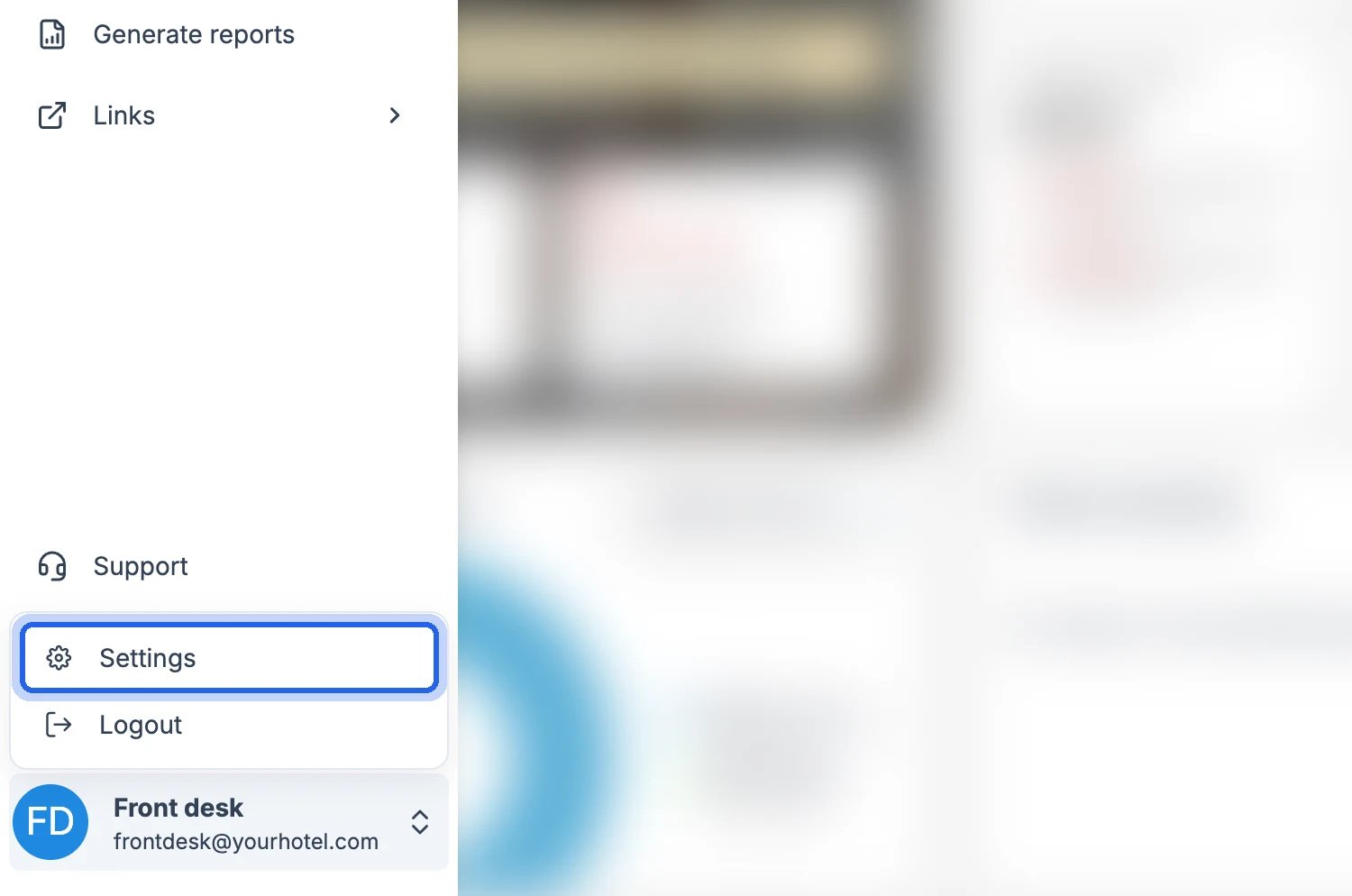
2
Go to the Security and Access tab
In the User settings window, open the Security and Access tab. At the bottom, in the Security section, you’ll find 2-factor authentication.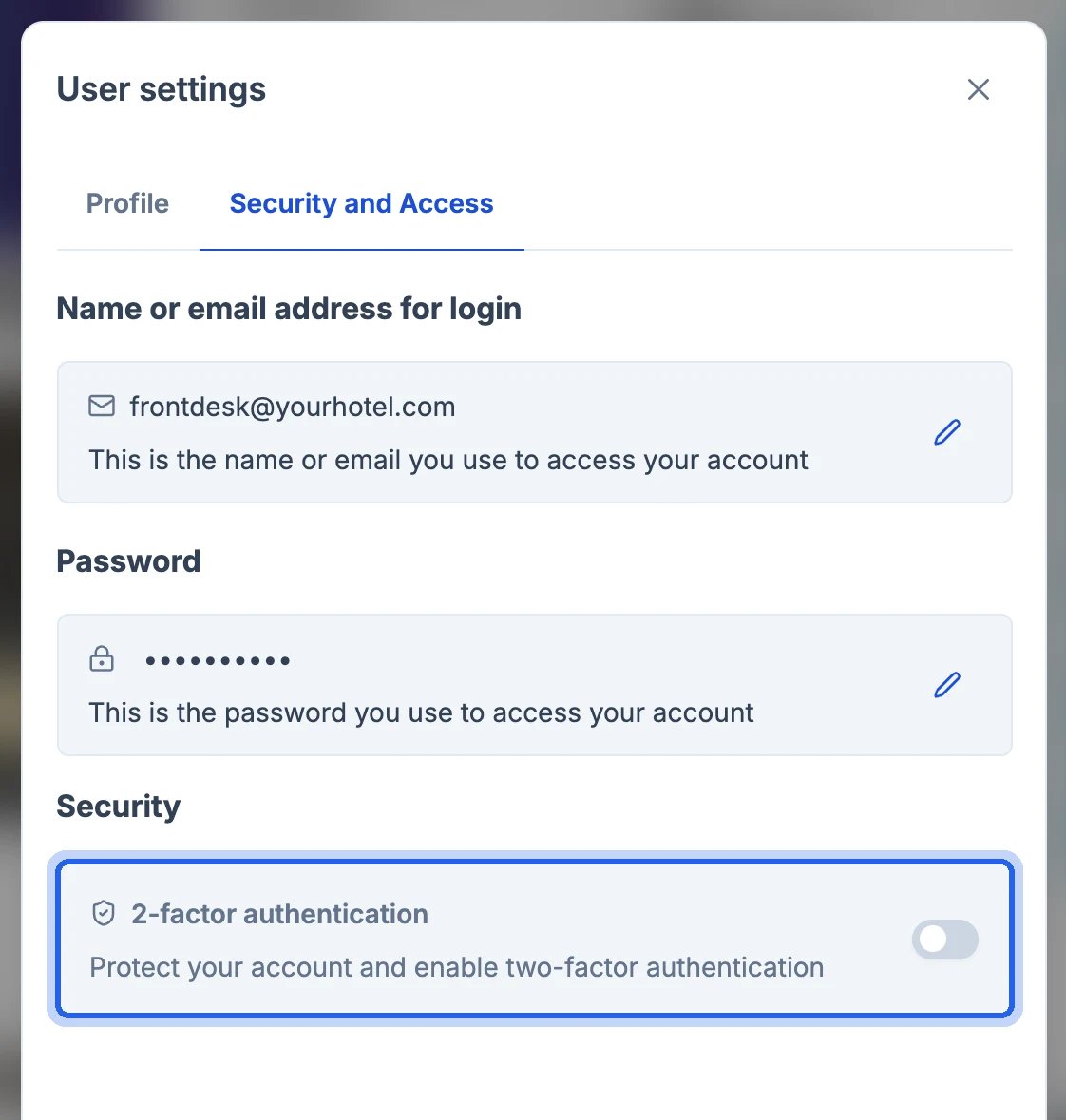
3
Turn on the switch and confirm your password
Turn on the 2-factor authentication switch. A three-step wizard opens: type your current password and click Continue.
4
Scan the QR code with the app
In the app, tap Add account (usually a +), scan the QR code and click Continue in Roomdoo. The account will show up in the app with your Roomdoo address, for example 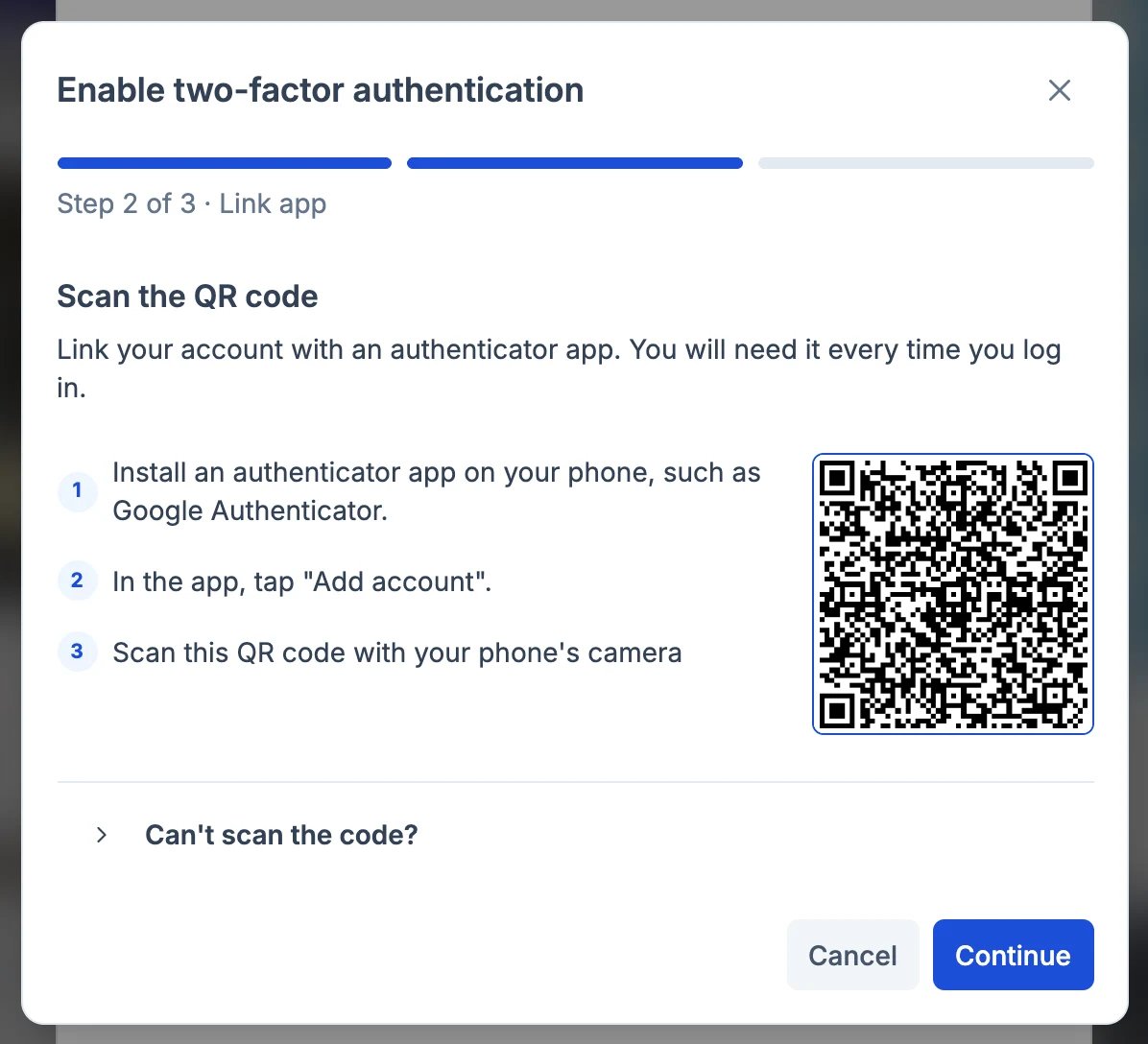
yourhotel.roomdoo.com.If you can’t scan it, for example because you’re turning it on from the phone itself, expand Can’t scan the code?, copy the code and paste it into the app using the option to enter a key manually.5
Type the code and click Activate
Enter the 6 digits the app shows and click Activate. You’ll see Two-factor authentication enabled; click Got it. From then on we’ll ask for the code every time you sign in.
3. Sign in with the code
Sign in with your email and password as usual. Then type the code from the app and click Login.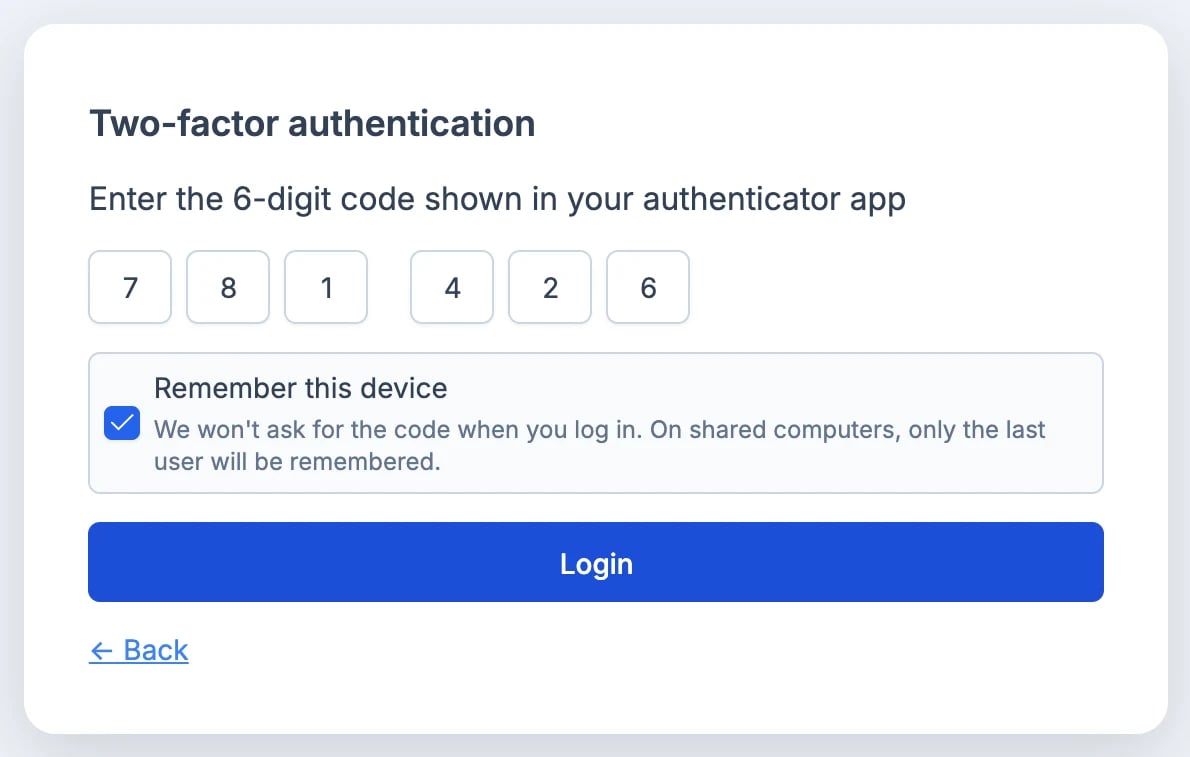
Common cases
“The code is not correct”
“The code is not correct”
Check that you’re looking at the Roomdoo account in the app and that the code didn’t change while you typed it. If it still fails, set your phone’s date and time to automatic: the codes depend on the time.
“Too many attempts or the code has expired”
“Too many attempts or the code has expired”
After 5 wrong codes, or if more than 5 minutes pass after you typed your password, you’ll have to start again with your email and password.
“The QR code has expired”
“The QR code has expired”
The QR code is valid for 15 minutes, and you get a different one every time you open the wizard. Delete from the app the account you added with the previous QR code and scan the new one.
I changed or lost my phone
I changed or lost my phone
If you moved your accounts to the new phone with the app’s backup, you don’t need to do anything. If you can no longer generate the code, email us at soporte@roomdoo.com and we’ll help you set it up again.
Can I turn it off?
Can I turn it off?
Not from the app: once it’s on, the switch stays locked. If you need to turn it off, email us at soporte@roomdoo.com.
Nobody at Roomdoo will ever ask for your password or the code from your app, whether by email, phone or chat.