> ## Documentation Index
> Fetch the complete documentation index at: https://docs.roomdoo.com/llms.txt
> Use this file to discover all available pages before exploring further.
# Searching for reservations
> Find any reservation in Roomdoo from the calendar: search by guest name or reservation number and review its summary and detail tabs.
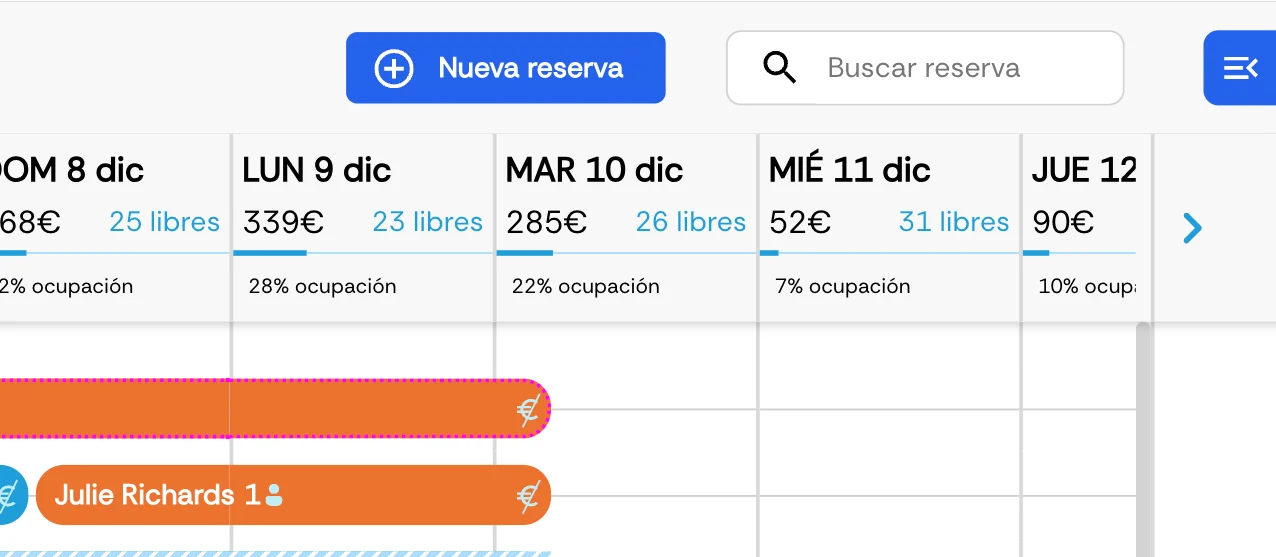
You can search for a reservation from the top-right corner of the calendar. Multiple search criteria are supported, such as guest name or reservation number.
 ## Reservation summary information
At the top of the result you'll see a short summary with the following information:
* The name on the reservation.
* The agency or OTA logo (if the reservation came through one).
* Number of rooms in the folio.
* Folio number.
* Folio status (confirmed, cancelled, etc.).
* Total reservation amount.
* Payment status.
## Reservation tabs
Below the summary are several tabs:
The **General** tab shows the high-level details of the reservation:
* The Guest data section shows guest details and lets you edit them.
* The Folio details section shows things like the applied rate, the external reference from the OTA or agency, and so on.
* Click Print folio to print or download a quote for the guest if they need one.
The **Reservations** tab shows every reservation inside the folio, with:
* Reservation status (with its colour) and assigned room.
* Number of nights.
* Check-in and check-out dates.
* Number of guests.
* Whether services are booked.
* Price per reservation.
Click any reservation to see the full details. For more, see the reservation view guide.
The **Payments** tab shows the payments and refunds for the reservation:
1. The amount still pending.
2. Amounts already paid, with date and payment method.
3. Any refunds issued.
The **Invoicing** tab shows the invoices issued for the folio, plus any items still pending invoicing.
The **Messages** tab shows the audit trail of changes:
1. You can re-send confirmation, cancellation, or departure emails.
2. Every change on the reservation is logged with date and the user who made it.
### More on managing reservations
* [Create a direct reservation](/en/reservations/create-reservation)
* [Search for reservations](/en/reservations/search-reservations)
* [Modify the dates of a reservation](/en/reservations/modify-dates)
* [Create blocks](/en/reservations/blocks)
* [Group reservations](/en/reservations/group-bookings)
## Reservation summary information
At the top of the result you'll see a short summary with the following information:
* The name on the reservation.
* The agency or OTA logo (if the reservation came through one).
* Number of rooms in the folio.
* Folio number.
* Folio status (confirmed, cancelled, etc.).
* Total reservation amount.
* Payment status.
## Reservation tabs
Below the summary are several tabs:
The **General** tab shows the high-level details of the reservation:
* The Guest data section shows guest details and lets you edit them.
* The Folio details section shows things like the applied rate, the external reference from the OTA or agency, and so on.
* Click Print folio to print or download a quote for the guest if they need one.
The **Reservations** tab shows every reservation inside the folio, with:
* Reservation status (with its colour) and assigned room.
* Number of nights.
* Check-in and check-out dates.
* Number of guests.
* Whether services are booked.
* Price per reservation.
Click any reservation to see the full details. For more, see the reservation view guide.
The **Payments** tab shows the payments and refunds for the reservation:
1. The amount still pending.
2. Amounts already paid, with date and payment method.
3. Any refunds issued.
The **Invoicing** tab shows the invoices issued for the folio, plus any items still pending invoicing.
The **Messages** tab shows the audit trail of changes:
1. You can re-send confirmation, cancellation, or departure emails.
2. Every change on the reservation is logged with date and the user who made it.
### More on managing reservations
* [Create a direct reservation](/en/reservations/create-reservation)
* [Search for reservations](/en/reservations/search-reservations)
* [Modify the dates of a reservation](/en/reservations/modify-dates)
* [Create blocks](/en/reservations/blocks)
* [Group reservations](/en/reservations/group-bookings)