> ## Documentation Index
> Fetch the complete documentation index at: https://docs.roomdoo.com/llms.txt
> Use this file to discover all available pages before exploring further.
# How to create and update rates
> Create and update rates in Roomdoo: prices per room type, restrictions and availability, with a step-by-step video walkthrough.
# How to set and update rates in Roomdoo
This video walks you through rate changes, restrictions, and availability:
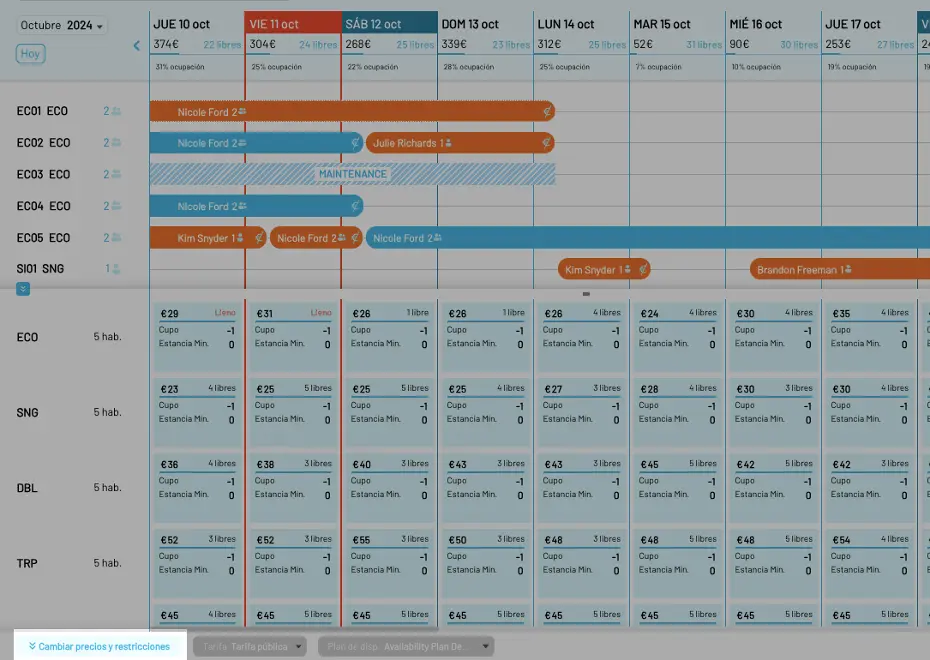
To update room prices and availability restrictions in Roomdoo, open the option at the bottom-left of the calendar by clicking **Update prices and restrictions**.
A panel opens showing the property's room categories for each day in the calendar.
When you start using Roomdoo, **the default price is €400** per room and no restrictions are applied.
You can update a room's rate by clicking the price directly in the dropdown. Click each price box you want to change, or use the Tab key to move to the next date.
Changes you make in the calendar show in blue. Click **Save** and the prices are updated.
Automatically, **these prices also update in the online sales channels connected to Roomdoo**.
For mass updates to rates, see our guide on [restrictions and availability plans](/en/rates/availability-restrictions).