> ## Documentation Index
> Fetch the complete documentation index at: https://docs.roomdoo.com/llms.txt
> Use this file to discover all available pages before exploring further.
# Availability restrictions and plans
> Apply restrictions and availability plans in Roomdoo, including mass updates, to control what is sold, when and at what price.
# How to apply restrictions and availability plans in Roomdoo
This video walks you through rate changes, restrictions, and availability:
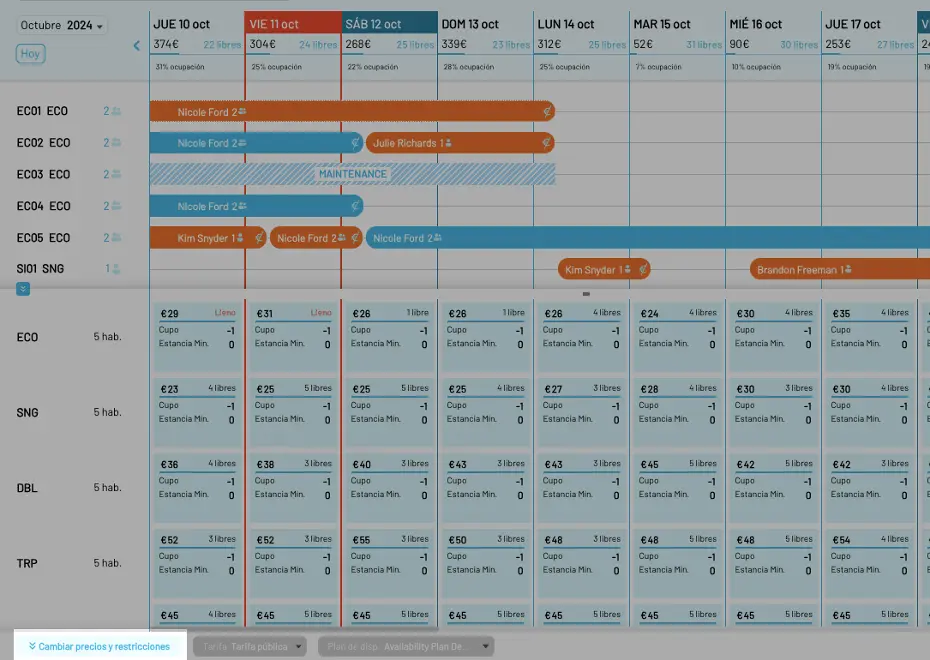
To update availability restrictions in Roomdoo, open the option at the bottom-left of the calendar by clicking **Update prices and restrictions**.
A panel opens with the property's room categories for each day in the calendar.
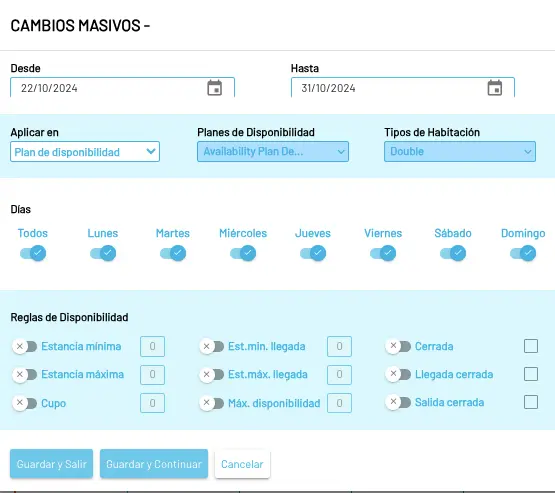
For each day and room you can adjust these parameters:
* **Allotment:** how many rooms the property has available to sell through online channels. The allotment can be limited and varies with demand and season.
* Setting the allotment to `-1` means every available room can be sold through online channels.
* Setting it to `0` closes online sales.
* Setting it to any other integer caps the number of rooms of that type available for online sale on that day.
* **Max availability:** this works together with allotment. When allotment is set to `-1` (all rooms available), max availability lets you cap how many show up at once on channels, so OTAs can display a "last rooms available" message. For example, if the hotel has 8 rooms and allotment is `-1`, you can set Max availability=`2` to push two at a time to Booking. Setting Max availability=`-1` tells Roomdoo not to limit and to publish everything at the same time.
* **Minimum stay:** the minimum number of nights a guest must book to stay. Common during high season, long weekends, special events, or promotions.
* **Maximum stay:** the maximum number of nights a guest can stay in a single reservation. Useful to avoid long stays and keep room turnover up, or for operational or legal reasons. Set `-1` for unlimited.
* **Closed:** closes online sales for the room type on that day. Regardless of the other parameters, ticking this immediately closes online sales. Useful if you take a phone reservation for every room on a given day, for example.
* **Min stay on arrival:** minimum stay applied only to bookings checking in on that specific day.
* **Closed on arrival:** stops new reservations with a check-in date on the selected day.
* **Closed on departure:** stops new reservations with a check-out date on the selected day.
## Mass updates
Setting prices day-by-day for each room type can be tedious, so there's a faster way.
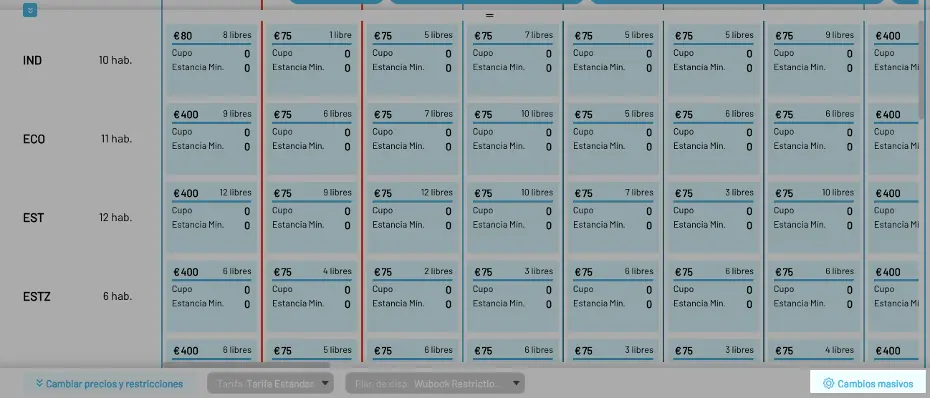
**TIP**: The button at the bottom-right of the panel lets you make **Mass updates**.
A window opens that lets you set the parameters above over specific dates or even for specific days of the week.
This way you can **apply rates and restrictions easily** for one or more room types over a specific period.
If you only need to change prices and restrictions for one room or a specific day without doing a mass update, see the guide on [how to set and update rates in Roomdoo](/en/rates/create-update-rates).