> ## Documentation Index
> Fetch the complete documentation index at: https://docs.roomdoo.com/llms.txt
> Use this file to discover all available pages before exploring further.
# How to record a payment in Roomdoo
> How to record a payment in Roomdoo step by step, with video: keep track of your reservation payments and keep invoicing up to date.
Here's the video walkthrough for recording a payment in Roomdoo:
To record a payment in Roomdoo, start by opening the property planning. Inside the calendar, after the check-out date, reservations in red have an amount still owed, and the ones in green are already paid.
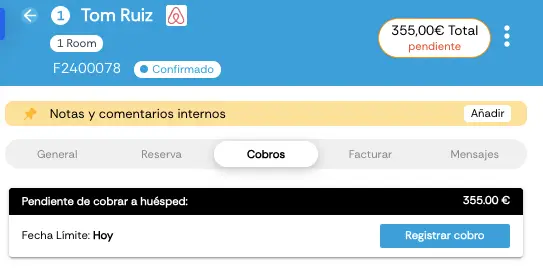
To record the payment, open the reservation from the calendar (or by reservation number), go to the **Payments** tab, and click **Record payment**.
Once there, pick the payment method (cash, card, etc.), save the changes, and the reservation's pending amount shows as paid. The reservation also turns green on the calendar.
You might also be interested in our guide on [how to issue invoices in Roomdoo](/en/invoicing/create-invoice).