> ## Documentation Index
> Fetch the complete documentation index at: https://docs.roomdoo.com/llms.txt
> Use this file to discover all available pages before exploring further.

# Export data for the INE occupancy survey (EOH)

> Step-by-step guide to exporting INE Hotel Occupancy Survey (EOH) data from Roomdoo, including the tourist apartment survey (EOAP).

Here's a step-by-step guide to sending data for the INE Hotel Occupancy Survey (EOH) for hotel establishments from Roomdoo.

<Note>
  **<u>Before you start:</u>** To complete the **EOH** *(Hotel Occupancy Survey)*, **you need to receive an official communication from INE with the data needed to fill it in**. The communication, which may arrive by email or letter, contains an order number and a password.
</Note>

## Steps to complete the hotel occupancy survey with Roomdoo

<Steps>
  <Step title="Receive the INE notification">
    You'll receive a communication from INE with the order number and a password. It can arrive by email or letter, asking you to send occupancy data for specific dates. Send it as soon as possible to avoid penalties and to fix any errors in time.
  </Step>

  <Step title="Open the INE site">
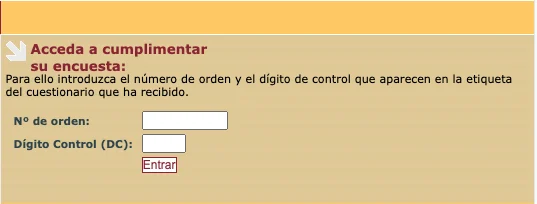
    Go to the [INE EOH report page](https://arce.ine.es/ARCE/EOAT/) and enter the order number and control digit (DC) you were given.

    <div style={{display: "flex", justifyContent: "center"  }}>
      <img src="https://mintcdn.com/roomdoo/xVfNzwKJoYNduOOs/images/compliance/15662-efca62d4-image.png?fit=max&auto=format&n=xVfNzwKJoYNduOOs&q=85&s=1990f9e25eeaf80292b588d778c6ed19" alt="INE order number" style={{ maxWidth: "600px", width: "100%" }} width="537" height="204" data-path="images/compliance/15662-efca62d4-image.png" />
    </div>
  </Step>

  <Step title="Upload data to the INE platform">
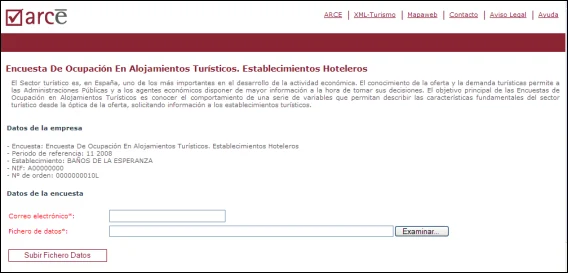
    Inside, add a valid email for your hotel. In the right section, click **"BROWSE"** and upload the XML file with the requested data.

    <div style={{display: "flex", justifyContent: "center"  }}>
      <img src="https://mintcdn.com/roomdoo/xVfNzwKJoYNduOOs/images/compliance/15666-ff024c86-image.png?fit=max&auto=format&n=xVfNzwKJoYNduOOs&q=85&s=e8fd92ff7f4e1910181a78431b0ae20a" alt="Upload XML" style={{ maxWidth: "600px", width: "100%" }} width="569" height="274" data-path="images/compliance/15666-ff024c86-image.png" />
    </div>
  </Step>

  <Step title="Generate the XML file from Roomdoo">
    * With the right hotel selected, open the Roomdoo planning.
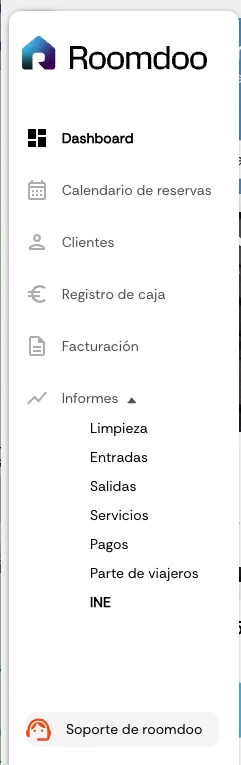
    * In the side menu, under **"Reports"**, click on the **"INE"** report.
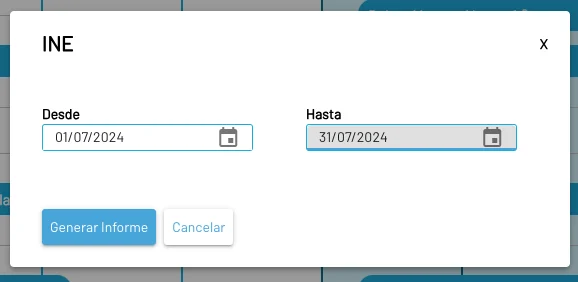
    * Pick the specific dates requested and click **"Generate report"**.
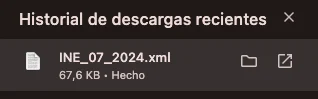
    * Download the report and save it to your computer.

    <div style={{display: "flex", justifyContent: "center"  }}>
      <img src="https://mintcdn.com/roomdoo/xVfNzwKJoYNduOOs/images/compliance/15665-ae64505c-image.png?fit=max&auto=format&n=xVfNzwKJoYNduOOs&q=85&s=874d22239fa3f3abc60b9cc9df40a006" alt="Reports menu" style={{ maxWidth: "600px", width: "100%" }} width="241" height="765" data-path="images/compliance/15665-ae64505c-image.png" />
    </div>

    <div style={{display: "flex", justifyContent: "center"  }}>
      <img src="https://mintcdn.com/roomdoo/xVfNzwKJoYNduOOs/images/compliance/15661-8bd6c279-image.png?fit=max&auto=format&n=xVfNzwKJoYNduOOs&q=85&s=0a82c457672d6f1fb1ee51de3f7a843a" alt="Generate report" style={{ maxWidth: "600px", width: "100%" }} width="578" height="282" data-path="images/compliance/15661-8bd6c279-image.png" />
    </div>

    <div style={{display: "flex", justifyContent: "center"  }}>
      <img src="https://mintcdn.com/roomdoo/xVfNzwKJoYNduOOs/images/compliance/15660-63483e4b-image.png?fit=max&auto=format&n=xVfNzwKJoYNduOOs&q=85&s=e00cb7467ab2cda2a586a72d95595c76" alt="Download report" style={{ maxWidth: "600px", width: "100%" }} width="318" height="99" data-path="images/compliance/15660-63483e4b-image.png" />
    </div>
  </Step>

  <Step title="Upload Roomdoo's XML to the INE">
    * On the INE platform, upload the file generated by Roomdoo.
    * Wait a few seconds and all the information will load.
    * To finish, go to the **"Price and Staff"** tab and click **"Send form"**.
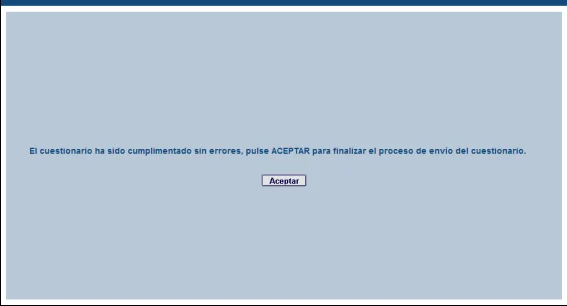
    * At that point a validation runs and, if anything is off, the errors show on screen. Until they're fixed, the file won't be submitted. Example of a successful validation:

    <div style={{display: "flex", justifyContent: "center"  }}>
      <img src="https://mintcdn.com/roomdoo/xVfNzwKJoYNduOOs/images/compliance/15664-62e2b8b1-image.png?fit=max&auto=format&n=xVfNzwKJoYNduOOs&q=85&s=539d92686991c49a93e92a917bf8412b" alt="Success notice" style={{ maxWidth: "600px", width: "100%" }} width="567" height="306" data-path="images/compliance/15664-62e2b8b1-image.png" />
    </div>

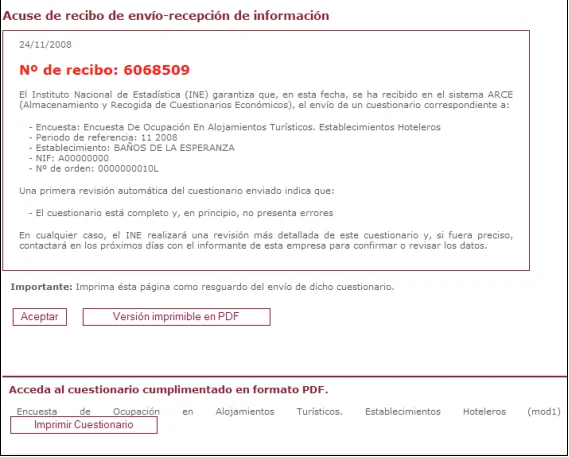
    * Clicking **"Accept"** gives you the **submission receipt** confirming the file was sent successfully.

    <div style={{display: "flex", justifyContent: "center"  }}>
      <img src="https://mintcdn.com/roomdoo/xVfNzwKJoYNduOOs/images/compliance/15663-05b519a9-image.png?fit=max&auto=format&n=xVfNzwKJoYNduOOs&q=85&s=95cbae59b8a713a2f2fb53e146bbd772" alt="Submission receipt" style={{ maxWidth: "600px", width: "100%" }} width="569" height="457" data-path="images/compliance/15663-05b519a9-image.png" />
    </div>
  </Step>

  <Step title="Error correction and validations">
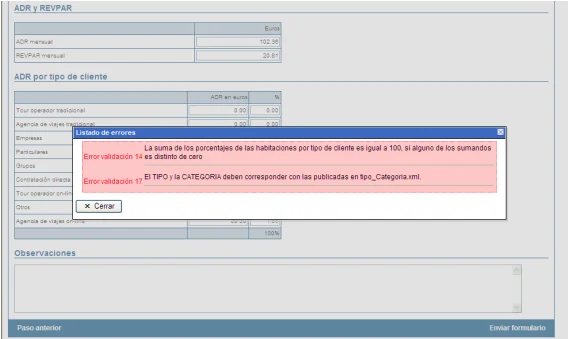
    If there are errors in the file, they'll show on screen when you try to send it. Fix them and try again. Once the file is correct, click **"Accept"** to receive the submission receipt. Example of an error notice:

    <div style={{display: "flex", justifyContent: "center"  }}>
      <img src="https://mintcdn.com/roomdoo/xVfNzwKJoYNduOOs/images/compliance/15659-60be2a14-image.png?fit=max&auto=format&n=xVfNzwKJoYNduOOs&q=85&s=cef8b9963d723913e8145751c7048046" alt="Error notice" style={{ maxWidth: "600px", width: "100%" }} width="569" height="339" data-path="images/compliance/15659-60be2a14-image.png" />
    </div>
  </Step>
</Steps>

If you have any doubts, get in touch at [soporte@roomdoo.com](mailto:soporte@roomdoo.com) with a screenshot of the error so we can help more precisely.

## Detailed INE manual

If you have questions, see [the official INE manual](https://roomdoo.com/wp-content/uploads/2024/10/MANUAL_XML.pdf) or access it directly at [https://arce.ine.es/ARCE/ficheros/MANUAL\_XML.pdf](https://arce.ine.es/ARCE/ficheros/MANUAL_XML.pdf).

For any question or error about the INE survey procedure, contact [soporte@roomdoo.com](mailto:soporte@roomdoo.com).

## How do I complete the Tourist Apartment Occupancy Survey (EOAP) for INE?

For apartments, the downloadable XML from Roomdoo isn't available yet.

<Warning>
  **EOAP:** For the Tourist Apartment Occupancy Survey (EOAP), you currently need to fill it in by hand.
</Warning>

We're working so that you'll soon be able to export this data automatically from Roomdoo.