> ## Documentation Index
> Fetch the complete documentation index at: https://docs.roomdoo.com/llms.txt
> Use this file to discover all available pages before exploring further.

# Booking.com and Expedia: activate WuBook directly as your connectivity provider

> How to activate WuBook yourself as your connectivity provider on Booking.com or Expedia. On Booking.com we recommend creating a Roomdoo user instead.

<Warning>
  **Don't confuse this with creating a Roomdoo user on Booking.com.** For Booking.com, what we recommend is to [create a Roomdoo user in your extranet](/en/channel-manager/booking-create-user): with that access, our team sets up the connection and everything else for you. Activating WuBook directly as your connectivity provider is something else: you do it yourself, without giving us access to your extranet.
</Warning>

## What it is and when to use it

Roomdoo connects to online sales portals (OTAs) through **WuBook**, the channel manager we work with. For WuBook to manage your **availability, rates and reservations**, each portal needs to have it **authorised as your connectivity provider**. This guide explains how to give that authorisation **yourself** from the extranet:

* **Booking.com**: follow this guide only if our team asks you to. If you've created a Roomdoo user for us, you don't need to do any of this: we take care of it.
* **Expedia**: this is the step you need to take to connect the channel.

It's a **one-off step per portal** and takes a few minutes. Once you've done it, our team finishes setting up the channel in WuBook and lets you know as soon as the connection is live.

<Note>
  The screenshots show the Spanish version of each extranet. Menu names may vary slightly depending on your language.
</Note>

## Booking.com

<Steps>
  <Step title="Open “Connectivity provider”">
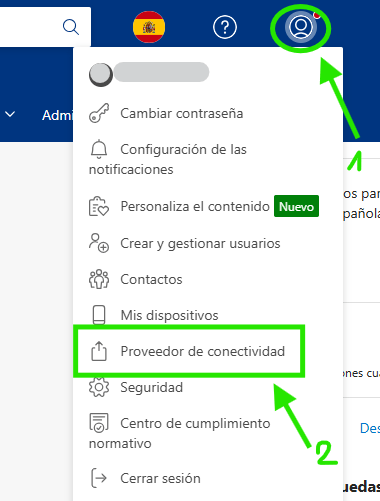
    Go to [admin.booking.com](https://admin.booking.com) and sign in. In the top-right corner, click your **account icon** and select **Connectivity provider**.

    <div style={{display: "flex", justifyContent: "center"}}>
      <img src="https://mintcdn.com/roomdoo/5UO-KaoLB27MnulB/images/channel-manager/connectivity-booking-step-1-proveedor.png?fit=max&auto=format&n=5UO-KaoLB27MnulB&q=85&s=96b14deae1f0d0ed5cb99206bd8a1b2f" alt="Booking.com extranet account menu with the Connectivity provider option" style={{ maxWidth: "380px", width: "100%" }} width="380" height="501" data-path="images/channel-manager/connectivity-booking-step-1-proveedor.png" />
    </div>
  </Step>

  <Step title="Search for and select WuBook">
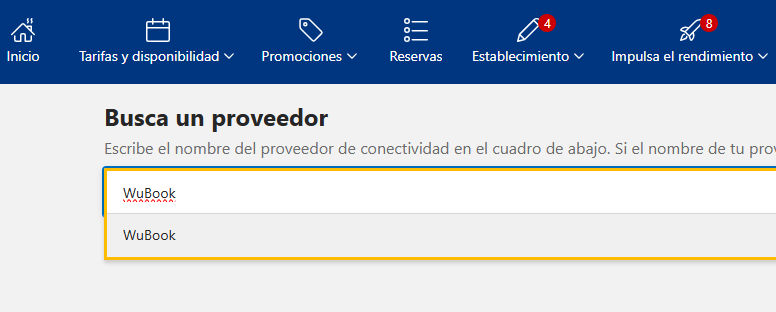
    If you don't have a channel manager connected, you'll see a search box. Type **WuBook** and select it from the results.

    <div style={{display: "flex", justifyContent: "center"}}>
      <img src="https://mintcdn.com/roomdoo/5UO-KaoLB27MnulB/images/channel-manager/connectivity-booking-step-2-buscar-wubook.png?fit=max&auto=format&n=5UO-KaoLB27MnulB&q=85&s=3e1d53eb717102119c26516f355a52ba" alt="Booking.com connectivity provider search with WuBook typed in" style={{ maxWidth: "700px", width: "100%" }} width="776" height="312" data-path="images/channel-manager/connectivity-booking-step-2-buscar-wubook.png" />
    </div>

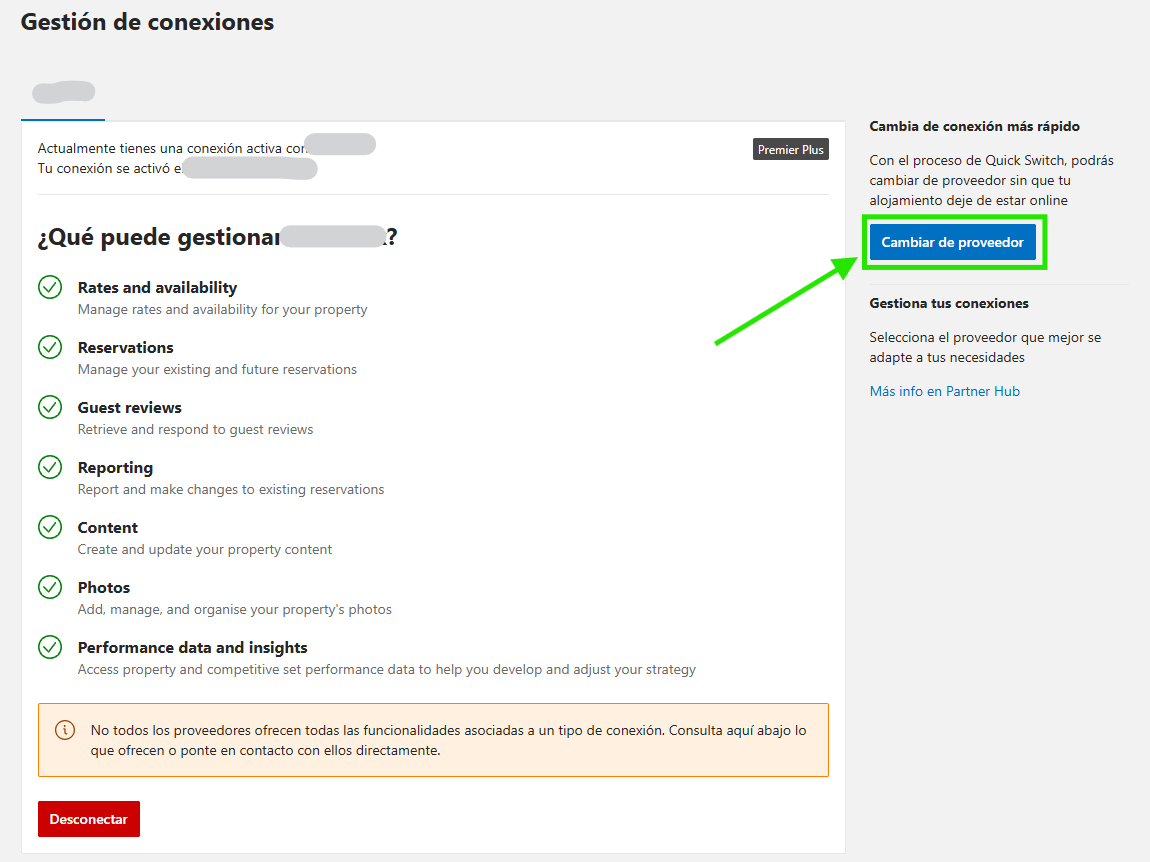
    If you already have another channel manager connected, you'll see **Connection management** instead. Click **Change provider** and search for WuBook.

    <div style={{display: "flex", justifyContent: "center"}}>
      <img src="https://mintcdn.com/roomdoo/5UO-KaoLB27MnulB/images/channel-manager/connectivity-booking-step-2-cambiar-proveedor.png?fit=max&auto=format&n=5UO-KaoLB27MnulB&q=85&s=f51cc93cf56a40ecc2ad2bc41c86d324" alt="Booking.com Connection management screen with the Change provider button highlighted" style={{ maxWidth: "800px", width: "100%" }} width="1150" height="862" data-path="images/channel-manager/connectivity-booking-step-2-cambiar-proveedor.png" />
    </div>

    <Tip>
      Changing provider from here uses Booking.com's Quick Switch: your property **stays online** while the change happens.
    </Tip>
  </Step>

  <Step title="Connect">
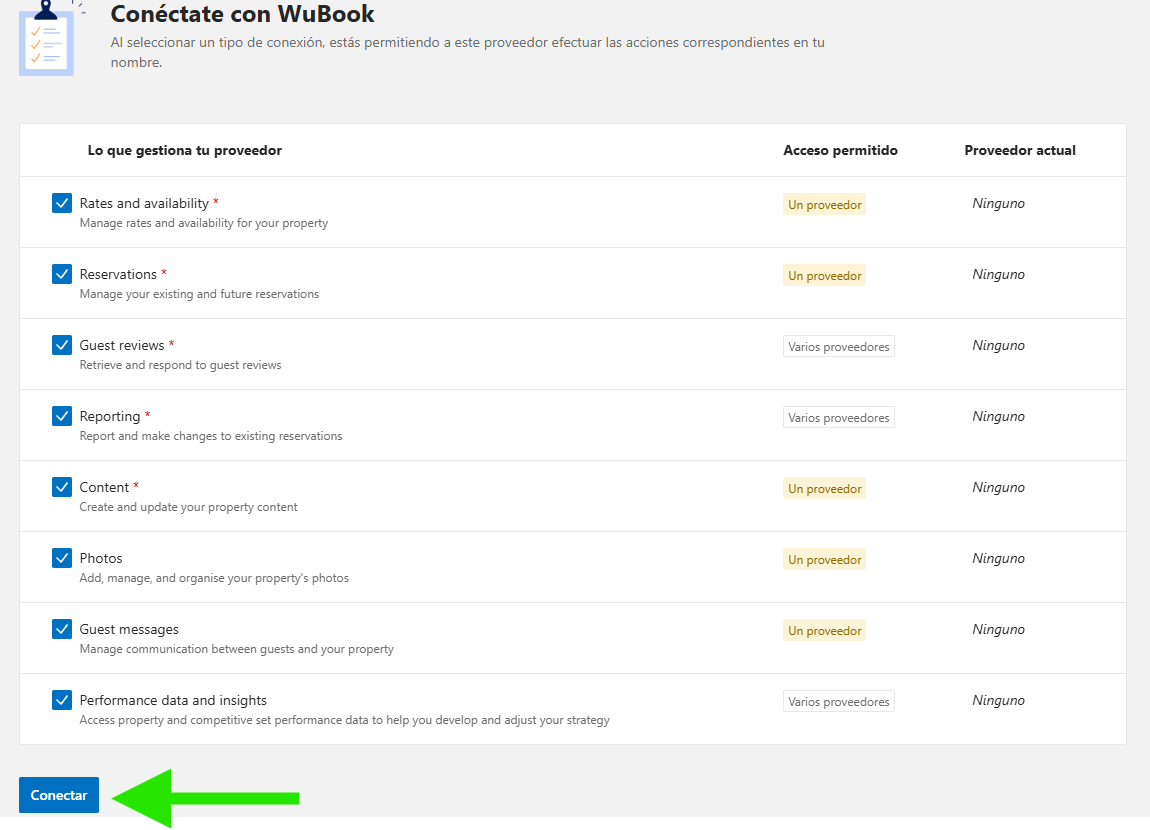
    Check that all permissions are ticked (they come preselected) and click **Connect**.

    <div style={{display: "flex", justifyContent: "center"}}>
      <img src="https://mintcdn.com/roomdoo/5UO-KaoLB27MnulB/images/channel-manager/connectivity-booking-step-3-conectar.png?fit=max&auto=format&n=5UO-KaoLB27MnulB&q=85&s=7d0d15eb9fdfd410be026138c795df2d" alt="Connect with WuBook screen with every permission ticked and the Connect button" style={{ maxWidth: "800px", width: "100%" }} width="1150" height="830" data-path="images/channel-manager/connectivity-booking-step-3-conectar.png" />
    </div>

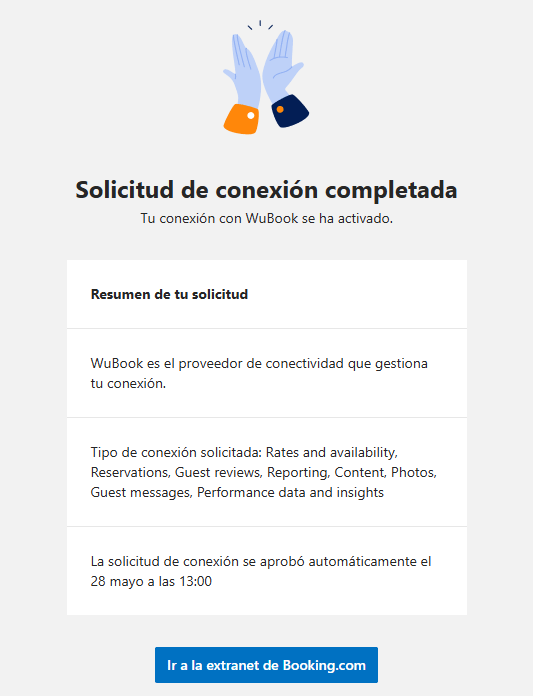
    The connection is approved automatically. You'll see **Connection request completed** — there's nothing else to do in the extranet.

    <div style={{display: "flex", justifyContent: "center"}}>
      <img src="https://mintcdn.com/roomdoo/5UO-KaoLB27MnulB/images/channel-manager/connectivity-booking-step-3-confirmada.png?fit=max&auto=format&n=5UO-KaoLB27MnulB&q=85&s=319112c3e68dd6c3dec4860297efa8fc" alt="Connection request completed confirmation: your connection with WuBook is active" style={{ maxWidth: "450px", width: "100%" }} width="533" height="696" data-path="images/channel-manager/connectivity-booking-step-3-confirmada.png" />
    </div>
  </Step>
</Steps>

## Expedia

<Steps>
  <Step title="Open “Connectivity settings”">
    Sign in to the Expedia extranet. In the left-hand menu, open **Rooms and rates** and select **Connectivity settings**.
  </Step>

  <Step title="Select WuBook as your provider">
    On the connectivity screen, search for and select **WuBook** as your channel manager.

    <Note>
      If you already have another channel manager active, you need to disconnect it first. Then you'll be able to select WuBook.
    </Note>
  </Step>

  <Step title="Enable the connection both ways">
    Tick both connection options and save your changes:

    * **AR (Availability & Rates)**: so WuBook manages your availability and rates.
    * **BR (Booking Retrieval)**: so WuBook receives your Expedia reservations.
  </Step>
</Steps>

<Warning>
  Always tick both. With only one, the connection is half-done: either Expedia doesn't get your prices and availability, or your Expedia reservations don't reach Roomdoo.
</Warning>

## Next: send us the property ID

Once you've activated the provider on one or both portals, write to [soporte@roomdoo.com](mailto:soporte@roomdoo.com) with your **property ID** on each channel.

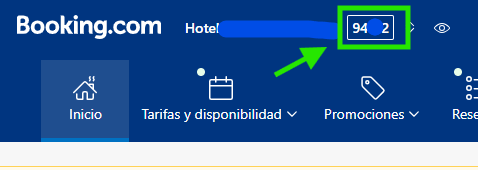
**On Booking.com**, the ID appears in the extranet header, next to the property name:

<div style={{display: "flex", justifyContent: "center"}}>
  <img src="https://mintcdn.com/roomdoo/5UO-KaoLB27MnulB/images/channel-manager/connectivity-booking-id-alojamiento.png?fit=max&auto=format&n=5UO-KaoLB27MnulB&q=85&s=97e8f2a1f50112564eb1400e461c00c5" alt="Booking.com extranet header with the property ID highlighted" style={{ maxWidth: "478px", width: "100%" }} width="478" height="170" data-path="images/channel-manager/connectivity-booking-id-alojamiento.png" />
</div>

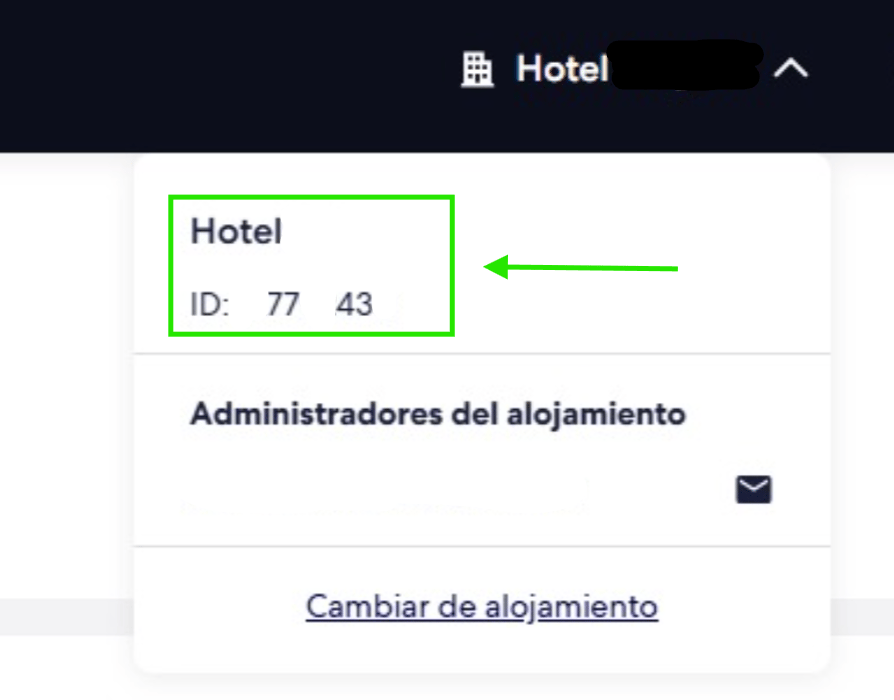
**On Expedia**, click the property name in the top-right corner and you'll see its ID in the dropdown:

<div style={{display: "flex", justifyContent: "center"}}>
  <img src="https://mintcdn.com/roomdoo/5UO-KaoLB27MnulB/images/channel-manager/connectivity-expedia-id-alojamiento.png?fit=max&auto=format&n=5UO-KaoLB27MnulB&q=85&s=73edb68ebc73ccd367e2cffff5d8dcac" alt="Expedia extranet property dropdown with the ID highlighted" style={{ maxWidth: "600px", width: "100%" }} width="894" height="700" data-path="images/channel-manager/connectivity-expedia-id-alojamiento.png" />
</div>

With that, our team:

1. Checks that the authorisation has come through.
2. Maps your rooms and rates in the channel manager.
3. Enables availability, price and reservation sync.
4. Confirms when the channel is up and running.

## When to contact support

* You're not sure whether to follow this guide or [create a Roomdoo user](/en/channel-manager/booking-create-user).
* You can't find **WuBook** in the provider search.
* The OTA **doesn't confirm** the connection or shows an error when connecting.
* You've sent us the property ID and, a few hours later, the channel **still isn't syncing**.
* You want to **switch channel manager** and aren't sure how to do it without stopping sales.

## Related

<CardGroup cols={2}>
  <Card title="Booking.com: create a Roomdoo user in your extranet" icon="b" href="/en/channel-manager/booking-create-user" />

  <Card title="Booking.com: authorise Roomdoo's emails and links" icon="shield-halved" href="/en/channel-manager/booking-authorize-emails" />

  <Card title="Wubook — connecting your channel manager" icon="arrows-rotate" href="/en/channel-manager/wubook" />

  <Card title="OTA synchronisation" icon="rotate" href="/en/channel-manager/ota-sync" />
</CardGroup>


This documentation is built and hosted on [Mintlify](https://mintlify.com), a developer documentation platform.