> ## Documentation Index
> Fetch the complete documentation index at: https://docs.roomdoo.com/llms.txt
> Use this file to discover all available pages before exploring further.
# Booking.com: authorise Roomdoo's emails and links
> How to authorise notifications@roomdoo.com and the roomdoo.com domain in your Booking.com extranet so your guests receive the confirmation and the online check-in link.
## Why it's needed
Booking.com doesn't give you your guests' real email: it gives you an intermediate Booking address (ending in `@guest.booking.com`) and forwards the messages that reach it. But **it only forwards the ones that come from addresses and links you've authorised** in your extranet. It blocks the rest, as a safeguard against fraud and phishing.
So if you don't authorise Roomdoo, guests who book through Booking.com don't receive the confirmation or the **online check-in link** — or they receive it with the link blocked. It's a one-off setting that takes no more than five minutes.
The screenshots show the Spanish version of the extranet. Menu names may vary slightly depending on your language.
## Before you start
Booking.com only lets users with **admin rights** on the extranet open these settings, and it may ask for **two-factor authentication** both to open them and to save changes. If you don't have those rights, ask whoever manages the property's account.
## Steps
Go to [admin.booking.com](https://admin.booking.com) with your usual user.
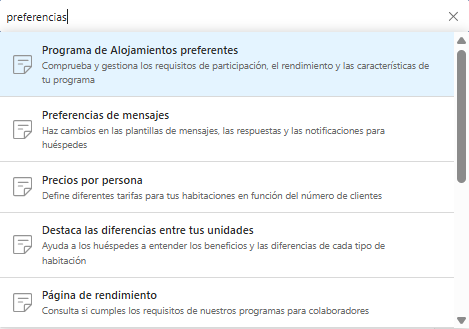
Type **messaging** in the search bar at the top and select **Messaging preferences**. You can also find it under **Property** > **Messaging preferences**.
Messaging preferences has several tabs. Open the last one, **Security settings**.
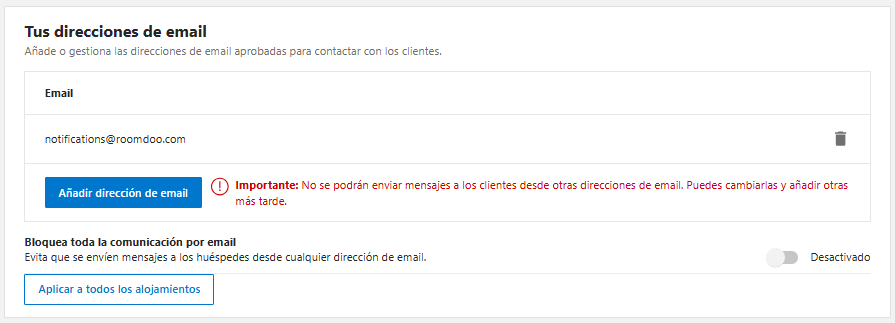
Under **Your email addresses**, click **Add email address** and enter:
```text theme={null}
notifications@roomdoo.com
```
It's the address Roomdoo uses to send confirmations and the online check-in request.
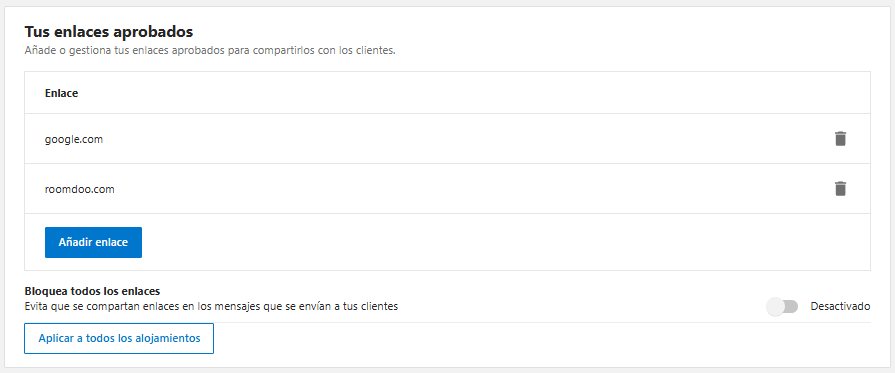
Under **Your approved links**, click **Add a link/domain** and enter:
```text theme={null}
roomdoo.com
```
This is the step people forget most. Without it, the email may arrive, but Booking.com blocks the link and the guest can't open the online check-in.
Make sure both toggles are still **off**: **Block all email communication** and **Block all links**. If either is on, Booking.com also blocks what you've authorised.
If you manage more than one property, click **Apply to all properties** in each section so you don't have to repeat the setup.
## From now on
You can send the confirmation email from Roomdoo for reservations coming in through Booking.com: the guest will receive it with their online check-in link.
If you'd rather not send it reservation by reservation, we can schedule it to go out a few days before arrival. Write to [soporte@roomdoo.com](mailto:soporte@roomdoo.com) telling us how many days before suits you and we'll set it up. More in [Pre-arrival email](/en/settings/pre-arrival-email).
## Common cases
Step 5 is missing: the `roomdoo.com` domain isn't in **Your approved links**, so Booking.com strips the link from the message. Add it and resend the email.
Booking.com requires admin rights and often two-factor authentication. Sign in with the account's admin user, or ask whoever has it to do these steps.
No need to remove them. Add Roomdoo's alongside the ones you already have.
Use **Apply to all properties** in each section. Otherwise you'll have to repeat the setup property by property.
## When to contact support
* You've authorised the address and the domain, and Booking.com guests **still don't receive** the emails.
* The email arrives, but the **link still won't open** after adding `roomdoo.com`.
* You'd like us to **schedule the automatic sending** of the email with the online check-in link.
## Related
This documentation is built and hosted on [Mintlify](https://mintlify.com), a developer documentation platform.